Appearance
Sharing and playback
Use this guide to adjust your share, manage invitations and control playback. To create or join a room, start with your first room.
Invitations
Copy invite link grants access to your room. Send it only to intended guests. Turn off Skip passwords beside the link to copy the ordinary room address; visitors then enter the site passphrase or room password as required. Invite-only rooms require an invitation credential. Existing invitations remain valid until you use Rotate link or Revoke link; both disconnect Viewers who joined with the old invitation.
Picture and sound settings
- Below the picture, open Sharing settings → Picture.
- Choose a preset. Use Fine-tune picture only when you need a specific resolution, frame rate, bitrate, picture preference or codec.
- Open Sound to choose the source audio and its output quality.
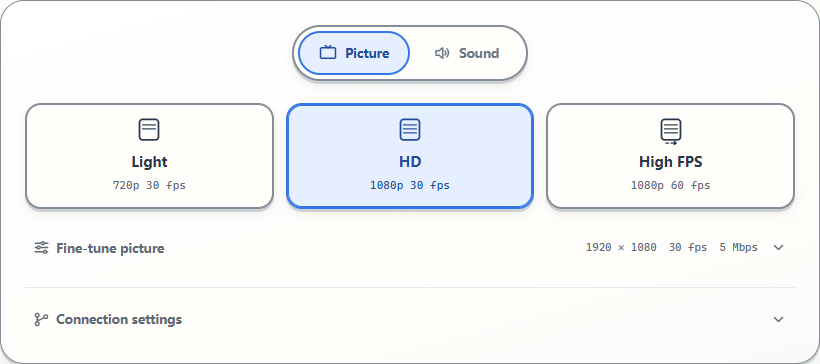
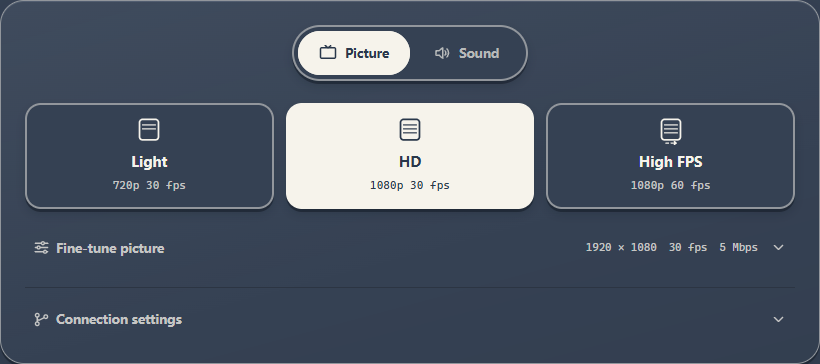
| Setting | What to expect |
|---|---|
| Resolution | A ceiling. Portrait and ultrawide sources keep their proportions. |
| Slider or custom value | Sliders cover common values. Type within the field's allowed range for other values; Use common range returns to a nearby slider value. |
| Picture and sound quality | Both still adapt to the source, device and available bandwidth. |
Applied settings are remembered for the current site. Opening Silip through an updated App also keeps sharing-quality settings when a public-invite address changes.
Include your microphone
Under Sharing settings → Sound, enable Include my microphone to add your voice to the shared picture. It starts off for each new share and stops with sharing. Viewers hear it through the picture's sound without joining room voice. Room voice remains independent. If you enable both microphones, listeners may hear you twice; Silip warns you and leaves the choice to you.
Cameras and virtual audio inputs
Picture sound and conversation use separate controls. Muting one does not mute the other.
In Camera, allow video access and select a picture card. While sharing one camera, the others are listed by name. Select a camera's built-in microphone separately for source commentary or room voice. For OBS Virtual Camera audio, follow the OBS audio-routing guide, then choose that input for source commentary under Sharing settings → Sound, or use room voice’s microphone settings for the separate conversation channel.
Exclude a voice app from screen audio
On Windows, this control applies to system sound from Screens. Apps / Windows captures only the selected application's process tree. Camera shares video; its microphone or virtual audio input requires explicitly enabled source commentary or room voice.
- Open Screens and enable System sound.
- Under Exclude application audio, select the voice app's window. Open its window and refresh the list if missing.
- Select the screen to share.
This excludes that process and its children from system sound. Other apps, including separate mixers and apps using other playback devices, remain audible. For a single application's sound, share it through Apps / Windows instead. Use headphones to prevent speaker sound entering your microphone.
If your virtual microphone is audible while muted in Silip, temporarily turn off System sound. If that removes the voice, check your mixer's playback output and monitoring, or share only the desired application's audio.
While sharing, use Sharing settings → Sound to change system sound or the excluded app without stopping the share. If the app closes or restarts, source audio stops; refresh the application list and select it again. Turning source audio off retains the exclusion choice; select None to restore unfiltered system audio. The option appears when the connected Windows App and system support exclusion. If the option is absent, share a single application window or route the voice app to a different playback device.
Playback controls
Move the pointer over the picture or tap it to show the playback bar.
- Playback and sound: pausing the picture affects only your own preview. The Host's volume changes the shared sound for everyone (0%–200%); Viewer volume changes only their own listening. The Host's preview stays muted to avoid playing the source twice. Room voice has separate controls.
- Pause the picture for friends: select Pause sharing below the picture. This affects everyone watching.
- Control your microphone and listening: open Interact → Voice. These controls are separate from picture sound.
| Control | What it does |
|---|---|
| Volume | Goes up to 200% with audio boost, or 100% otherwise. Lower it if the sound distorts. |
| Picture fit | Click to cycle: Fit keeps the whole picture visible; Fill crops its edges; Stretch changes its proportions. |
| Rotate picture | Switches between portrait and landscape locally, without rotating the device or changing the shared source. |
| Theater mode | Expands the picture inside the browser tab. |
| Picture in picture | Opens a floating video where supported. |
| Fullscreen | Expands the picture to the full screen. |
| Playback settings | Adjust on-screen chat and connection preferences. Connections default to Auto; available alternatives depend on the host and site. |
Connection preferences
Leave the connection setting on Auto for ordinary use. To compare routes, select one of the alternatives offered by the Host and site.
On supporting sites, Playback settings → Connection → Help relay to more viewers lets a Viewer volunteer more upload for the current visit. It starts with one extra Viewer; adjust Maximum relay viewers to set your limit. It remains an ordinary P2P relay; enable it on a stable connection with upload to spare.