Appearance
Advanced network checks
Use this page when the page opens, but picture or voice will not connect. Choose the relevant check:
- Campus/work network, or the same invite works on a hotspot: connection options.
- The same invite works in another browser: browser restrictions.
- Logs mention STUN, or you manage the router: discovery and router checks.
- Using Tailscale, ZeroTier or UU: virtual LAN steps.
Web pages and chat use a separate connection from picture and sound. For media failures, check WebRTC UDP and the route options below.
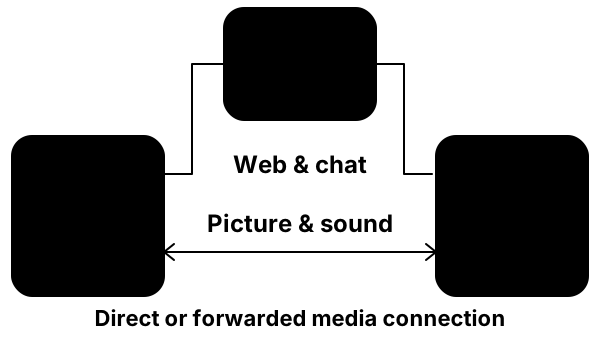
If the invitation page will not open, or video already plays but blurs or stutters, start with that symptom instead.
Campus networks and strict NAT
Open the same invitation on a phone hotspot first. If it works there but not on the original network, investigate that network's shared gateway or firewall.
For regular use, choose an option that fits your group:
- You have a Silip site: ask its operator to enable server media forwarding (SFU). The Host turns off Privacy mode so forwarding can be tried if direct connections fail. For App capture, approve the new site, then send its invitation.
- Everyone can install a networking tool: use the virtual LAN steps below with the App's Local room.
- The required connections are blocked: use an available network or ask its administrator to review access.
Media requires UDP. App Local room and Public invite use P2P-only media. SFU forwarding requires a site with that feature enabled and a reachable UDP endpoint.
Browser WebRTC restrictions
Browser WebRTC settings, VPNs and privacy extensions can block media UDP, including the browser-to-App connection on the same computer.
- Open the same invitation in a browser profile with default settings and no relevant privacy extensions.
- If it works, check WebRTC or IP-leak protection in the original browser and restore a policy that allows WebRTC UDP.
- Reload Silip and retry sharing or viewing. School/company-managed settings need an administrator's review.
Chrome / Vivaldi settings
disable_non_proxied_udp restricts UDP that does not use a proxy. Compare with the browser default. Chrome extensions may control this policy without a visible browser switch. Vivaldi provides Settings → Privacy and Security → WebRTC IP Handling → Broadcast IP for Best WebRTC Performance.
Direct connections can expose network addresses to peers. Change the setting that blocks UDP, keeping other privacy settings as needed. See Chrome's policy reference and Vivaldi's privacy settings.
STUN, IPv6 and router checks
These checks are for App users reading logs and people who manage a site or router. Only change the parts you manage.
STUN discovery and settings
STUN discovers the addresses devices can use to connect. App Public invite tries several services; if discovery fails, replace the built-in addresses with SILIP_STUN_URLS before starting Public invite. Site operators should check that STUN_URLS points to reachable UDP services; an HTTP reverse proxy does not forward STUN.
Choose trusted services: they receive participants' public IP addresses. The WebRTC connection guide explains discovery.
Check IPv6 connectivity
When the provider, router and both devices have usable IPv6, Silip can try it alongside IPv4. Keep IPv4 enabled too; IPv6 still obeys firewall rules. Router menus vary; consult your manufacturer's IPv6 guidance.
Router mappings and shared addresses
Supported UPnP, PCP or NAT-PMP can let App's native media path request port mappings; browser-only capture does not request them. If both modem and router perform NAT, your model's bridge/AP-mode instructions may remove a layer. Back up settings first. Carrier-grade NAT is upstream; ask your provider about public IPv4 or IPv6.
See manufacturer guidance on UPnP and double NAT.
Optional: a virtual LAN
A virtual LAN connects devices in different places, so you can share through Silip App's Local room. The tool must provide reachable virtual IPv4 addresses and carry both web traffic and WebRTC UDP; acceleration limited to one game does not suffice. Choose a tool available to everyone in your group:
- Tailscale: install it on each device and invite friends to the same private network (tailnet). In Silip, select the Host's Tailscale IPv4 address (
100.x.y.z). - ZeroTier: join the same network ID on each device, then authorize those devices in its management console. In Silip, select the Host's assigned virtual IPv4 address.
- UU (Chinese guide): use the general-purpose LAN option and join the same room. In Silip, select the Host's UU virtual IPv4 address.

- Join the same network. The Host and friends run the tool and join the same virtual LAN.
- Host selects its address. In the updated Silip App, choose Local room, expand Local invitation address, select the tool's virtual IP, then enter the room and share.
- Send the complete invitation. Friends open the HTTPS invitation on that virtual IP. On first access, confirm the local certificate with the Host before entering. Do not send
localhostor only a room code. - Check picture and sound. Everyone keeps the networking tool running; the Host also keeps Silip App running. If the virtual IP changes, the Host selects the new address and sends a new invitation.
If something fails, start with the first failing step:
- Page will not open: check local invitations and firewall permissions for that virtual network.
- Page opens, media will not connect: check that the tool carries media UDP and review browser WebRTC settings.
- Microphone or remote control is unavailable: use the App-generated HTTPS invitation, confirm its certificate, then check browser permissions. Supporting browsers can use these features without a public tunnel, just as on an ordinary LAN.
Join only with trusted friends.
Use frp with an existing server
For administrators with a public server, the frp recipe forwards an existing site's web and SFU endpoints through frps. Configure both web and media forwarding.
If the issue persists, collect reports from the same attempt.