Appearance
Your first Silip room
Back to Silip
Silip lets one Host share with up to 20 invited Viewers. Choose your starting point:
| You want to… | Start here |
|---|---|
| Watch a friend | Open their invitation. No installation. |
| Share with friends elsewhere | Silip App → Public invite. Keep App running. |
| Use your group's site | Open that site; App capture is optional. |

Join a friend's room
- Open the invitation link your friend sent in a desktop or mobile browser.
- Wait for their screen to appear. If the browser blocks autoplay, press Play.
- Move the pointer over the picture or tap it to show the playback bar.
The playback bar controls only your own picture and sound. See playback controls for fullscreen, display and sound options.
Only have a four-digit code? Open the same Silip site and select Join a room. Enter the site passphrase or room password if asked. If code entry is unavailable or an old link fails, ask the Host for their current invitation.
Share with Silip App
- Download Silip App for your platform from the Silip website. On phones and tablets, install the app. On a computer, extract the whole archive and keep its directory structure intact.
- Open
silip-app.exeon Windows,Silip App.appon macOS, or./silip-appon Linux. On phones and tablets, open Silip after installation. The launcher opens in your system browser. - Choose Public invite for friends outside your local network, then select Open Silip. Other modes are explained below.
- Choose Start sharing, then select Browser, Camera, Apps / Windows, or Screens as available. Pick the actual source and sound option.
- Copy and send the room invitation. Keep both the App and sharing tab open.
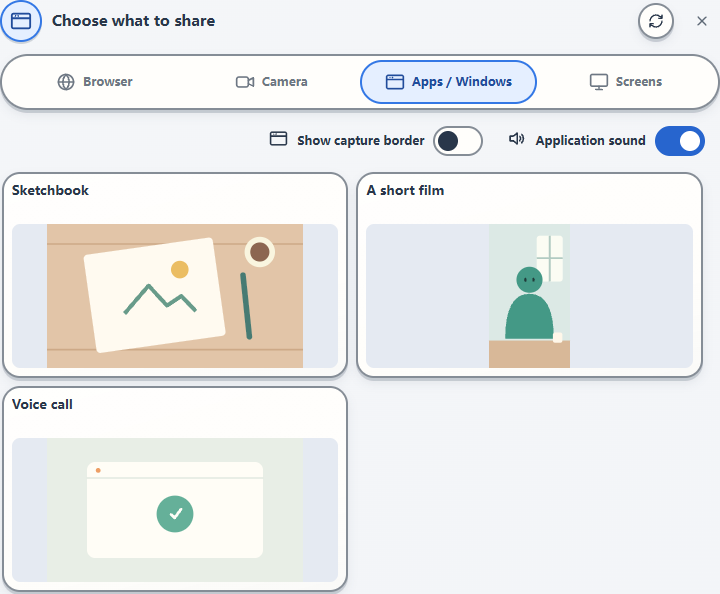
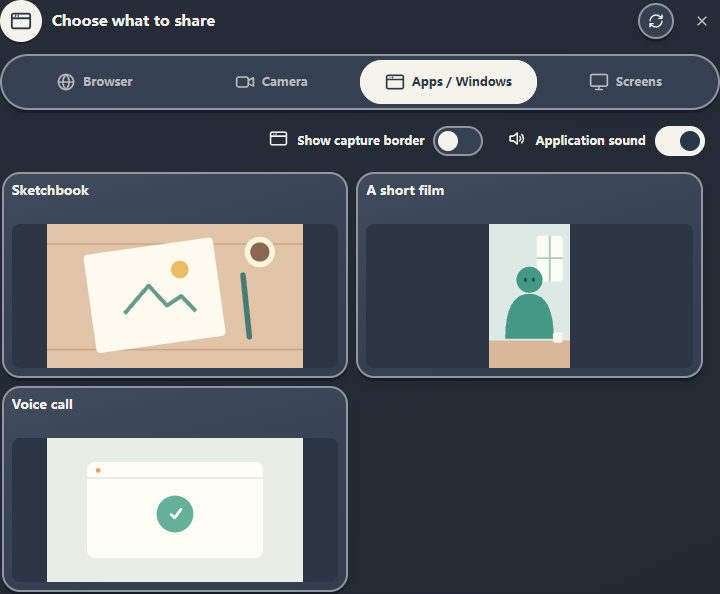
If macOS blocks the first launch, follow the Mac opening steps.
Which download should I choose?
| Filename contains | Platform |
|---|---|
windows-amd64 | Windows x64 |
darwin-arm64 | Apple silicon; native capture requires macOS 13+ |
darwin-amd64 | Intel Mac; native capture requires macOS 13+ |
linux-amd64 | Linux x64 |
linux-arm64 | Linux ARM64 |
android-universal | Android 10+; ARM64 and x64 in one APK |
Linux native capture also needs system components. See the App guide for package and runtime details.
Choose an App mode


- Public invite: send a temporary web link to friends elsewhere. It needs Internet access and lasts until you close the App.
- Local room: friends are on the same LAN or virtual LAN. Your computer must be reachable from theirs. If needed, expand Local invitation address and select the network interface your friends use.
For Local room and Public invite, expand Site passphrase to set an optional access passphrase. Local invitations use HTTPS. On first access, confirm the local certificate against the Host's App terminal before continuing; see the certificate guide.
Return to the launcher or change mode
Once the room service starts, click the connected App button at the top right to return to the launcher, manage site access or reopen the room. The App terminal also keeps an App launcher address. To change between Local room and Public invite, close and reopen the App, then choose again. This ends the previous room and generates a new public-invitation address.
Use App with an existing site
- Keep Silip App running and open the Silip site in your browser. Enter its site passphrase if asked. No room mode needs to be selected in the App launcher.
- Click App at the top. Allow local-network access if the browser asks. When App is found, choose Open App page.
- Check the site address on the local confirmation page, then choose Allow access.
- Return to the site, choose Start sharing, then Apps / Windows or Screens. Select a source and send the new room invitation to your friends.
You can also choose Connect Silip App inside the Start sharing source selector; its list updates as soon as the connection completes. If connection fails, the App button offers Retry and Download App. You can still share and watch in your browser.
Manage approved sites and the startup favorite in the App launcher. If video cannot connect, use the network guide.
Upgrading
App and site must use the same major version; 2.x and 1.x cannot be used together. To replace App or update a group's site, follow the upgrade steps.
Share from an existing site
Use an HTTPS Silip site provided by your group or administrator. To run your own site, follow self-hosting.
- Open your group's Silip site. Enter its site passphrase if asked.
- Choose Start sharing, then Browser to select a screen, window or tab, or Camera where your computer or phone browser supports it. Enable source audio if the picker offers it.
- Check the preview, then choose Copy invite link and send it to your friends.
- Keep the sharing tab open. Use Pause sharing, Switch source, or Stop sharing when you need them.
Screen capture requires an HTTPS site or localhost. The sources and audio offered by the picker depend on your browser and operating system. Invitation links grant access to that room; share them with the people you want there.
To use App capture on that same site, follow Use App with an existing site. The site manages rooms and invitations; the App supplies native capture. If its operator has enabled SFU forwarding, turn off Privacy mode before sharing to allow that fallback. The project's online site uses P2P only.
Next steps
- Sharing and playback: picture settings, camera inputs and source sound.
- Chat, voice and remote control: talk, react or let a friend take control.
- Troubleshooting: start from the symptom you see.